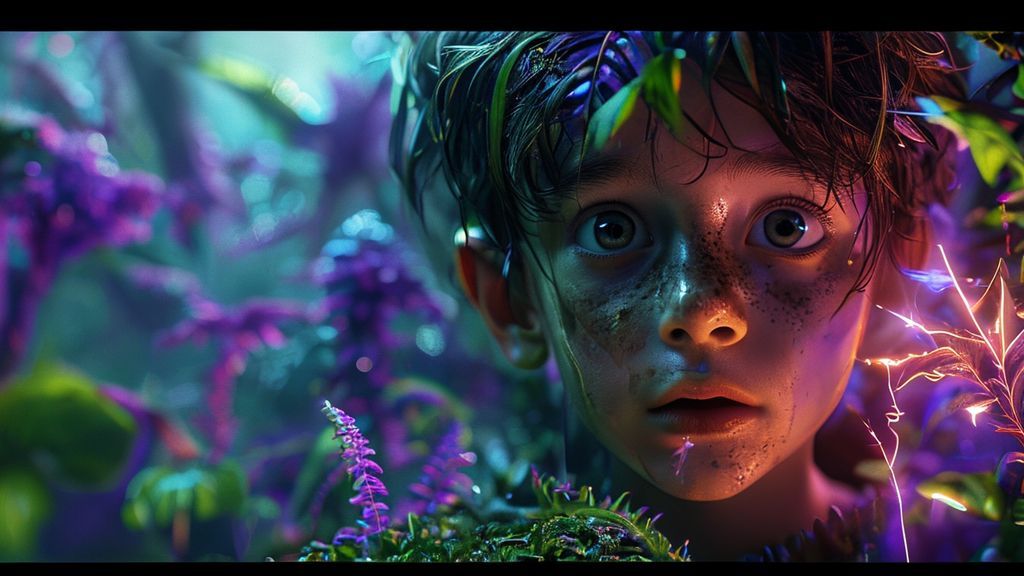
Mastering Long AI Video Creation (10 Minutes) for Free: Consistent Characters & HD Animation
Artificial intelligence has revolutionized the content creation landscape, making high-quality video production accessible to everyone. While creating lengthy animations featuring consistent characters, professional narration, and subtitles previously required expensive software and countless hours of specialized labor, today it is possible to achieve stunning results using free AI tools. This detailed guide reveals an advanced workflow that strategically combines the power of CapCut (Dreamina) for script structuring and character consistency, with the animation fluidity of Grock, enabling you to produce complete videos up to 10 minutes long, ready to go viral.
The secret lies in the strategic integration of multiple AI platforms, leveraging the core strength of each. While one excels at maintaining the character’s visual identity across numerous scenes, the other stands out in generating fluid, high-quality movements. We will dive into the step-by-step process of transforming a simple text prompt into an engaging, animated story.
1. The Pillar of Attraction: Creating Viral Thumbnails with Viratamb
Having an expertly produced video is useless if people don’t click to watch it. The click-through rate (CTR) is the primary factor for YouTube success, and it is directly determined by the quality and appeal of your thumbnail. This is where Viratamb comes in, an artificial intelligence specifically designed to model viral thumbnails.
The Psychology of Thumbnails and the Face Swap Feature
Viral thumbnails often utilize strong facial expressions, color contrasts, and elements that generate curiosity or urgency. Viratamb simplifies the replication of these successful elements.
- Access and Registration: The first step is accessing the platform and completing a quick registration.
- Modeling: The AI allows you to search for high-performing thumbnails related to your topic, serving as a visual template.
- Face Swap Feature: This is the central tool. After selecting the model thumbnail, you use the Face Swap feature. The platform requests the upload of 10 photos of yourself so the AI can select the best image to replace the face on the chosen viral template. It is essential to choose photos with good lighting and varied angles.
- Customization: Viratamb not only places your face but also allows you to adjust the background to be similar to the chosen model, maintaining visual coherence. Editing tools allow you to add text, shapes, and other elements to make the thumbnail unique and personalized, maximizing click potential.
2. Structure and Consistency: The Power of CapCut and Dreamina
CapCut, the well-known video editor from Byte Dance, has dramatically evolved, incorporating cutting-edge artificial intelligence suites, such as Dreamina, which excels in video generation and, crucially for our purpose, maintaining character consistency.
Setting Up the Long Video Project
Within CapCut’s AI suite, the Instant AI Video feature is our starting point. It allows for the creation of complete stories via a single prompt.
a) Prompt Engineering for Consistent Characters
To ensure the main character (like the 10-year-old girl in our demonstration) maintains the same appearance across all scenes, the prompt must be meticulously detailed. It is highly recommended to use ChatGPT or another writing tool to structure the script and prompt comprehensively, including:
- General Style: Example: 3D Cartoon.
- Story Context: The main plot.
- Character Details: Age, hair color, hair type (wavy, straight), eye color and size (large, expressive blue eyes), clothing, etc. The more detail, the more faithful the AI will be.
- Scene Structure: Divide the time into clear scenes (Introduction, Transition, Climax, Awakening, Conclusion).
- Extra Directives: Include information on soundtrack direction, camera direction (close-up, wide shot), and the emotional objective of the scene.
b) Essential Settings
After defining the prompt, insert it into the script field. Remember:
- Language: If you want English narration, the prompt must be in English.
- Duration: Select the desired time (1, 3, 5, or up to 10 minutes). The AI will adjust the complexity of the storyboard to the chosen time.
- Style and Format: Choose the visual style (e.g., 3D Cartoon) and the 16:9 aspect ratio (horizontal) for YouTube videos.
- Narration: Select the desired voice for your language. The platform offers various multilingual options.
Generating the Static Storyboard
By clicking “Create,” CapCut/Dreamina quickly generates a complete storyboard, divided into narration segments and corresponding images. The significant advantage here is that, throughout all scenes, the main character remains identical, fulfilling the consistency requirement. However, the initial result consists of static images or images with very limited movement.
3. Animation Enhancement: The Leap to Fluidity with Grock
To transform the static, consistent images from CapCut into dynamic, fluid video clips, we utilize Grock. This is the step that elevates the production quality to a professional level.
Preparing High-Resolution Images
Before animating, we need to extract the images generated by CapCut in high quality and without watermarks:
- In the CapCut storyboard, click “Replace” on each image.
- The image will be enlarged. Use the mouse (which turns into a magnifying glass) to click and enlarge the image further.
- Right-click and select “Save image as…”. Repeat this process for all scenes.
- Organize all images in a folder in the chronological order of the script.
Detailed Animation in Grock
Grock is known for its ability to generate fluid and high-quality animations. The process is simple but requires precise, contextual prompts:
a) Upload and Contextual Prompting
Access Grock (in the Imagine section) and upload the first static image. The animation prompt must be very specific, describing the action and the visual result you expect, especially if the image is unclear about certain details.
Practical Example: If the girl is sleeping with her eyes closed, and you want her to wake up, the prompt must specify the eye color, as Grock does not know the character has “blue eyes” just from the static image. Example: “Colored lights stream through the window like a magical dream to awaken the girl, who will open her blue eyes.”
b) Upscale and Download
After Grock generates the animation (which usually lasts a few seconds), it is crucial to boost the quality. Click the three dots and select “Upscale the video.” This converts the clip to HD quality. Download the video and save it in the same folder, naming it according to the scene.
Repeat this process for all saved images. Even with limited daily credits on free platforms, it is possible to complete a 10-minute project over two days or by using different accounts, ensuring all scenes have high-level animation.
4. Final Assembly and Professional Polishing in CapCut
With all the animated clips in hand, the final step is to return to CapCut for the final assembly, where narration, subtitles, and animations will be unified.
Rebuilding the Project
Return to the initial CapCut project (AI Videomaker) and click “Edit More.” This will load the complete project, with all static images, narration, and subtitles arranged on the timeline.
a) Replacement and Layering
Replacing the static images with the animated Grock videos is the most crucial part:
- Drag all animated videos (from your folder) to the CapCut upload area.
- For each scene, drag the corresponding animated video to the timeline, positioning it below the subtitle (text) and narration layer. It is vital that the video is placed beneath the subtitle so that it is not covered and remains visible to the viewer.
- Adjust the duration of each animated clip so that it perfectly fits the timing of the scene’s narration.
b) Scale Adjustment (Full HD 16:9)
Due to the download and re-upload process, the animated videos may come in a squarer format, not fully filling the 16:9 YouTube screen. Manual adjustment is required:
- Select the clip on the timeline.
- Go to “Basic.”
- Use the “Scale” function to zoom in on the video until it fills the entire screen area.
- Adjust the position (by dragging up or down) to center the character focus, if necessary.
- Repeat the scale adjustment for all replaced clips.
Final Export
With narration, subtitles, fluid animations, and character consistency guaranteed, the video is ready for rendering. Click “Export” (or “Download”). Be sure to maintain the optimal settings for YouTube:
- Resolution: 1080p (pixels).
- Frame Rate (FPS): 30 fps.
- Format: MP4.
The result is a long, professional-quality video, fully animated, complete with a soundtrack (which can be added separately using libraries like Epidemic Audio, ensuring copyright clearance), narration, and automatic subtitles—all created through a predominantly free and highly efficient workflow.
Conclusion: The Future of AI-Powered Storytelling
The ability to create compelling, long-form video content with consistent characters and high-quality animation, without the need for significant investment in software or production time, is a game-changer. This workflow integrating Viratamb, CapCut/Dreamina, and Grock not only optimizes production but also ensures your content is engaging from the thumbnail to the last second of animation. By mastering the art of prompt engineering and tool integration, you are ready to compete at the highest level of the YouTube ecosystem, turning ideas into captivating 10-minute animated stories that engage and monetize.